

Performing a workout
Performing a workout
Section titled “Performing a workout”Workouts can be performed either immediately or scheduled for a future date.
For more information about scheduling workouts, see the Scheduling a workout page.
Performing a scheduled workout
Section titled “Performing a scheduled workout”Previously scheduled workouts can be started from the Dashboard or Calendar.
From the dashboard
Section titled “From the dashboard”If a workout has already been scheduled for today, you can start it from the Dashboard, just click the Perform Workout button.
From the calendar
Section titled “From the calendar”You can also start a workout from the Calendar by clicking the Start Workout button.
Performing a new workout
Section titled “Performing a new workout”Workouts can be started without scheduling them either from the Library or the Workout screens.
For more information about generating workouts, see the Workout Generator page.
Workout view
Section titled “Workout view”Before you can start a workout, you will need to select a smart trainer from the device list.
You may also select a heart rate monitor at this stage.
Click on the devices to connect to it. By default, any devices previously connected will be automatically selected. This behaviour can be changed in the Settings screen.
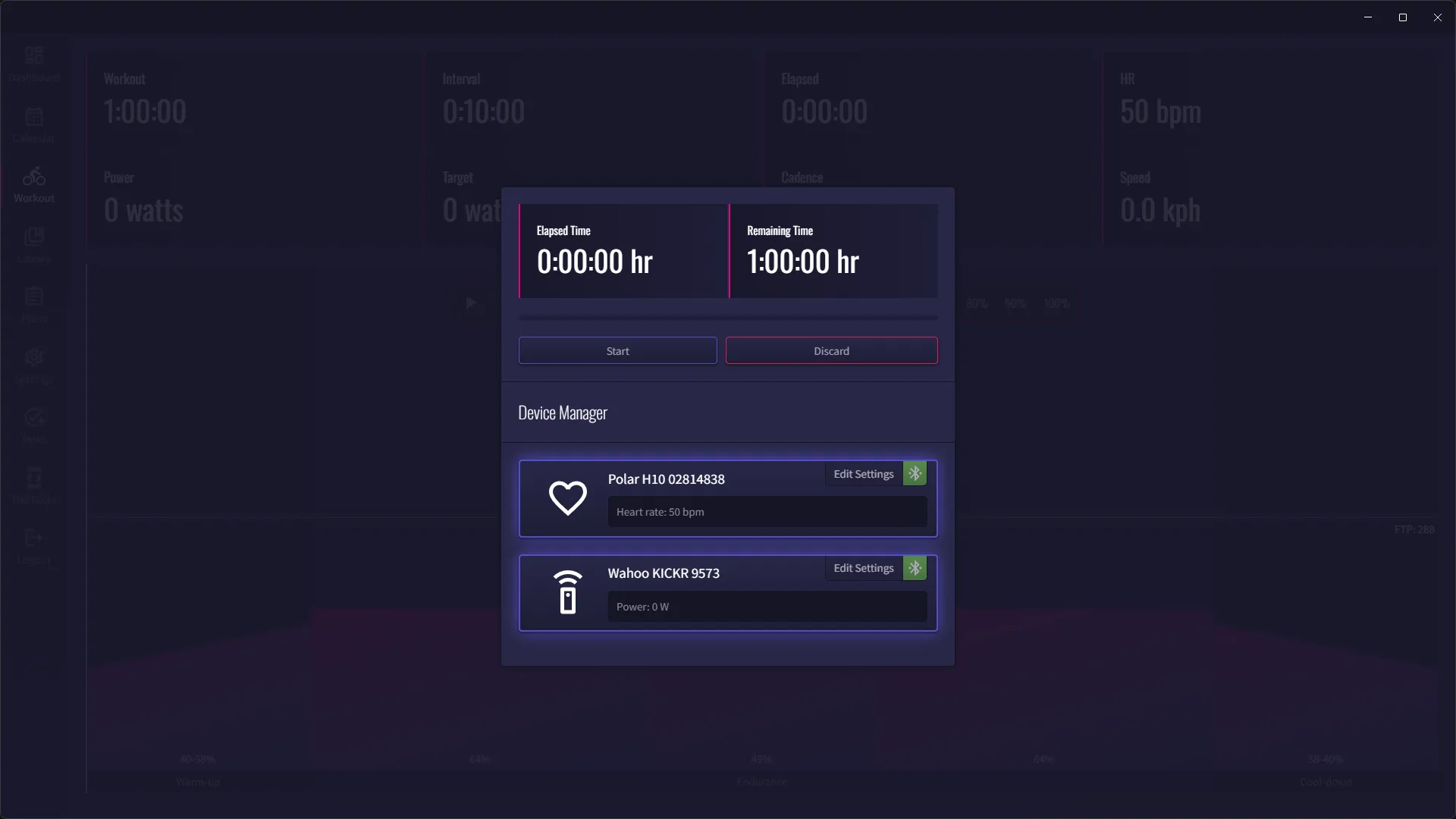
Once connected, you can start the workout by clicking the Start button.
Workout Controls
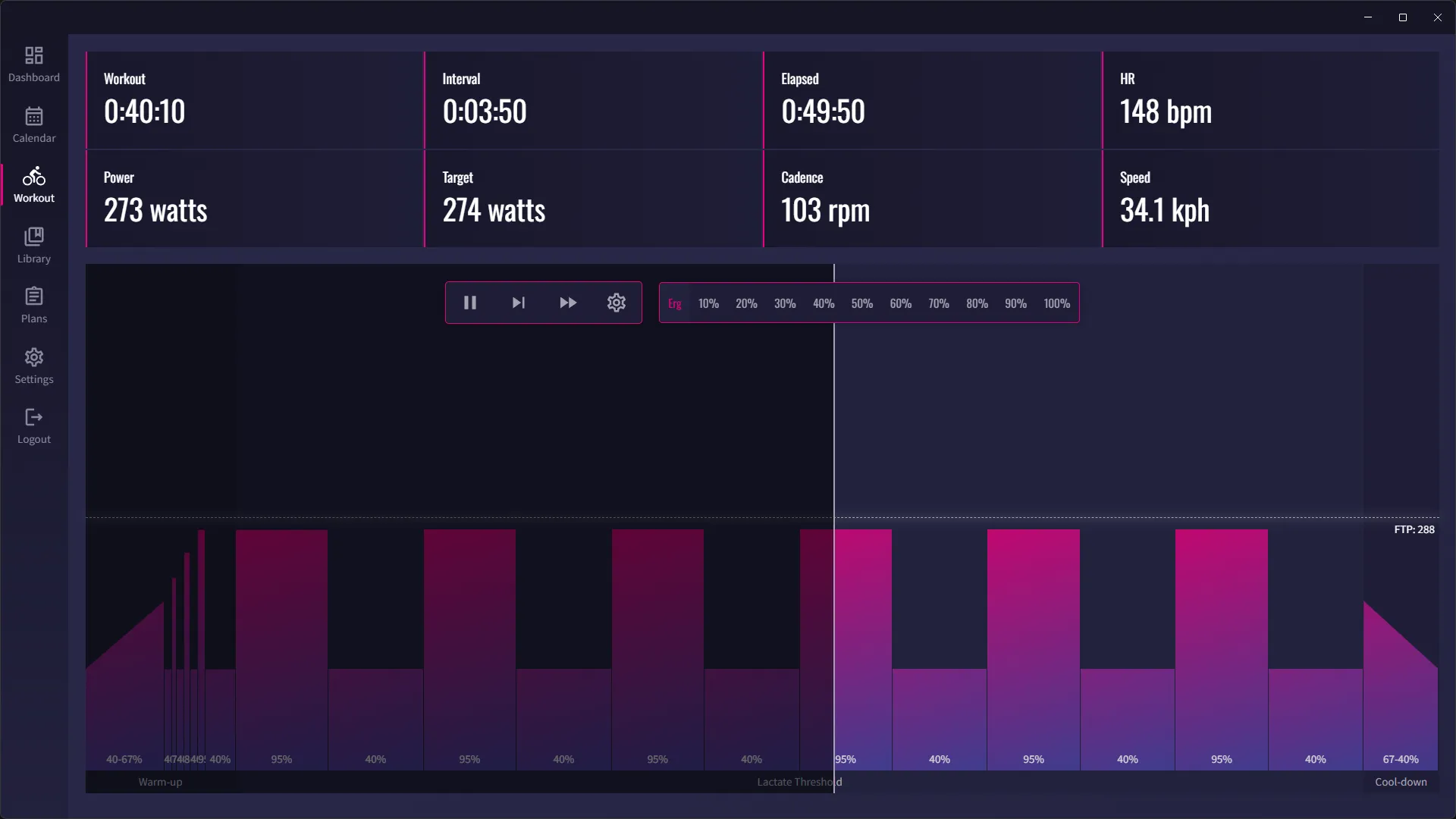
Section titled “Workout Controls”The workout controls allow you to pause or resume, skip a step, skip a section or open the workout settings.
Steps are individual intervals within a workout.
Sections are groups of steps that are repeated together. Most workouts will have 3 sections, a warm-up, a workout and a cool-down.
Trainer Controls
Section titled “Trainer Controls”By default, erg mode is selected for workouts. This means that the trainer will use the resistance of the workout to adjust the power level.
You can override this behaviour be selecting one of the resistance modes from the trainer controls from 10% to 100%.
To quickly set the resistance level, you can use the numbers on the keyboard, 1 to 0. 1 = 10%, 2 = 20%… 0 = 100%.
Workout Information
Section titled “Workout Information”The workout information section shows the current workout progress, including time remaining, interval remaining time, total elapsed time.
It also shows the current power target, power level, cadence, speed and heart rate (if available).